MacBook Won’t Turn On? Checks to Try Before You Bring It In
You open your MacBook, press the power button, and nothing happens. No chime, no Apple logo, just a black screen. It’s a sinking feeling, especially if your work, schoolwork or photos are on there.
Take a breath. A MacBook that won’t turn on isn’t always a broken MacBook. Sometimes it’s a charger, a stuck power state or an accessory causing trouble. Here are the checks we suggest trying first, based on Apple’s own troubleshooting steps. If none of them work, we’re Computers Plus, an Apple Authorized Service Provider in Charleston, and we’d be glad to take a look.
First, a quick safety note
If your MacBook got wet, smells like something burned, or the case looks swollen or warped, skip the troubleshooting. Don’t keep plugging it in and trying to power it on. Unplug it, set it somewhere safe, and bring it in. Pushing power through a device with liquid damage or a damaged battery can make things worse.
Check 1: Power, cable and adapter
It sounds too simple, but it’s the most common fix. Apple’s first step is to make sure your power cable is undamaged and plugged securely into both your Mac and a working outlet.
- Try a different outlet. Plug a lamp or phone charger into the same outlet to make sure it’s live.
- Look over the cable. Check both ends for fraying, bent connectors or debris in the port.
- Try another charger if you have one. Apple suggests trying another compatible power cable or adapter.
- Give it time. If the battery was completely drained, leave it plugged in for a while before you try again.
Check 2: Press and hold the power button
Sometimes a Mac gets stuck in a state where it looks off but isn’t responding. Apple’s next step is to press and hold the power button for about 10 seconds. On MacBook models with Touch ID, the Touch ID button is the power button, so press and hold that.
Then let go, and press and release the power button normally.
Check 3: Unplug every accessory
A faulty accessory or cable can keep a Mac from starting up. Apple recommends unplugging everything, including printers, drives, USB hubs, docks, displays and phones. Then repeat the 10-second power button hold from Check 2.
If it starts up with nothing plugged in, add your accessories back one at a time to find the one causing trouble.
Check 4: Is it actually off, or just not starting up?
Look closely at the screen, and listen. Do you see a flashing question mark, a circle with a line through it, or anything else? Do you hear a fan or feel warmth?
If you see something on the screen, Apple says your Mac is turned on but isn’t starting up all the way. That’s a different problem, often related to the startup disk or macOS, and Apple has separate steps for it in its guide on what to do if your Mac stops or delays while starting up. On a Mac with Apple silicon, Apple’s steps include pressing and holding the power button until “Loading startup options” appears.
Software problems like this are often fixable in store. Mac software repairs for Apple silicon M1, M2, M3 and M4 models are listed on our pricing page.
Check 5: Try an external display (if you have one)
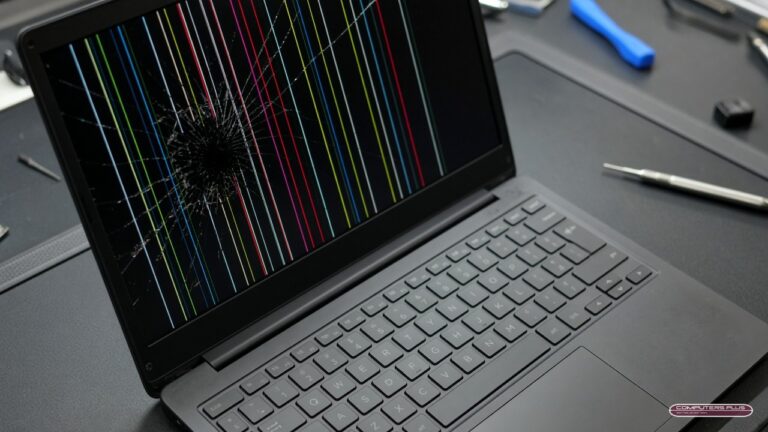
If you hear the fan or see the keyboard light up but the screen stays black, the display itself may be the problem. Connecting an external monitor can help you tell the difference. If the picture shows up there, the Mac is running and the screen is what needs attention. MacBook screen repair prices by model are on our pricing page.
When to bring it in
If you’ve tried these checks and your MacBook still won’t turn on, it’s time for a technician. Some problems, like a failing battery, a bad charging port or a logic board issue, can’t be fixed from the outside. Here’s how to make drop-off smooth:
Prepare Find My, even if the Mac won’t turn on. Normally you’d turn off Find My or turn on Ready for Repair or Trade In before a repair. If your Mac won’t power on, Apple says you can do it from another device: open the Find My app on your iPhone or iPad, or go to icloud.com/find, select your Mac and choose Repair or Trade In or Remove This Device. Our prep guide walks through it.
Bring the charger and any accessories related to the problem, your sales receipt if you have it (some repairs might require proof of purchase), and a photo ID.
Tell us what happened. When did it stop working? Was it dropped, did it get wet, or did it run out of battery? Did a software update just happen? The more we know, the faster we can figure it out.
What happens at Computers Plus
All of our repairs are handled in store. Just bring your MacBook to 301 RHL Boulevard Suite 2, Charleston, WV 25309, Monday through Friday, 9 AM to 5 PM. No appointment needed.
We’ll diagnose the problem and give you a quote. No repair work is performed until you approve the quoted price. Most repairs are completed within 3–5 business days after diagnostic approval and parts availability, though some repairs and special-order parts take longer. If your Mac is covered by AppleCare+, we handle AppleCare+ Mac repairs right here in store, with the same walk-in drop-off. Apple sets the service fees, which are listed on its AppleCare page. You can read more about what the plan covers in our AppleCare+ guide.
You can learn more about our Mac repair service, including MacBook battery and screen repairs. And if it’s a Windows laptop that won’t turn on, we fix those too. See PC & laptop repair.
Still stuck? We’re right here in Charleston
A MacBook that won’t turn on is frustrating, but it’s often fixable. Try the checks above, and if your Mac still won’t wake up, bring it by the shop. Questions before you come in? Call us at 304.744.1832.
Troubleshooting steps in this post are based on Apple Support documentation as of October 2026. Apple updates its guides over time, so check the linked Apple pages if something looks different on your Mac.