How to Back Up Your Mac Before a Repair: Time Machine and iCloud Drive
Before you bring your MacBook or iMac in for repair, there’s one step that matters more than any other: make a fresh backup.
Some repairs can require a Mac to be erased, and some problems, like a failing drive or logic board, can cause data loss nobody can prevent. Computers Plus can’t guarantee your data will be preserved during a repair. Our data service is device-to-device transfer only. We don’t do data recovery, and we don’t keep copies of your files. So your own backup is what keeps your photos, documents and projects safe.
Apple gives you two good built-in options: Time Machine and iCloud Drive. Here’s how to use them, based on Apple’s support pages.
Option 1: Time Machine (the full backup)
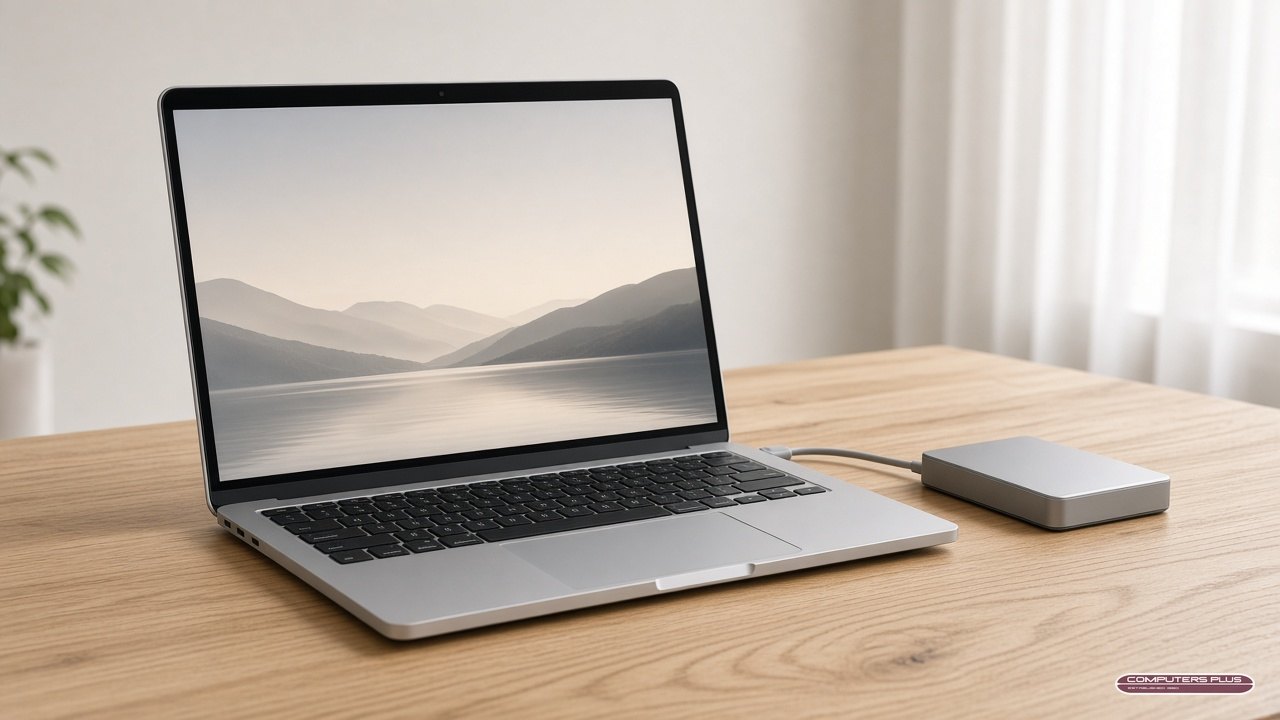
Time Machine backs up your Mac to an external drive. According to Apple, it can automatically back up your files, including apps, music, photos, email and documents.
What you need: an external storage device, like a USB or Thunderbolt drive. Apple recommends a drive with at least twice the storage capacity of your Mac. So if your Mac has 1TB of storage, your backup drive should ideally have at least 2TB. Apple also recommends using the drive only for Time Machine backups.
How to set it up (macOS Ventura 13 or later, from Apple’s guide):
- Connect the external drive to your Mac.
- From the Apple menu, choose System Settings.
- Click General in the sidebar, then click Time Machine.
- Click Add Backup Disk (or the Add button).
- Select your drive, then click Set Up Disk.
Apple notes that your Mac might ask to erase the drive so it can be used for Time Machine. If there’s anything on that drive you need, pick a different drive. If you turn on Encrypt Backup, you’ll create a backup password, and you’ll need it later to restore files, so keep it somewhere safe.
Back up right before drop-off. Once Time Machine is set up, choose Back Up Now from the Time Machine menu in the menu bar. Apple says the first backup might take longer than you expect, but later backups are faster because Time Machine only backs up what’s changed. Before you unplug the drive, eject it or shut down your Mac.

Option 2: iCloud Drive for your Desktop and Documents
iCloud Drive keeps files in iCloud so you can get to them on your other devices. Apple explains that when you turn on Desktop & Documents Folders, those two folders are stored in iCloud Drive (Apple Support).
How to turn it on (from Apple’s steps):
- From the Apple menu, choose System Settings.
- Click your name, then click iCloud.
- Click Drive (or iCloud Drive).
- Make sure Sync this Mac is turned on.
- Turn on Desktop & Documents Folders, then click Done.
Keep in mind: iCloud Drive keeps files in sync across your devices. It’s a great way to keep your everyday files available, but it isn’t a full copy of your Mac the way a Time Machine backup is. You’ll also need enough iCloud storage for everything you want to keep there. For the best protection, use Time Machine too.
Make sure it worked
Before you drop off your Mac:
- Check the Time Machine menu for the date and time of your latest backup.
- Open a few files in iCloud Drive from another device, or at iCloud.com, to make sure they’re there.
- Keep the backup drive at home. It should stay with you, not travel with the Mac.
Then, get your Mac ready for service
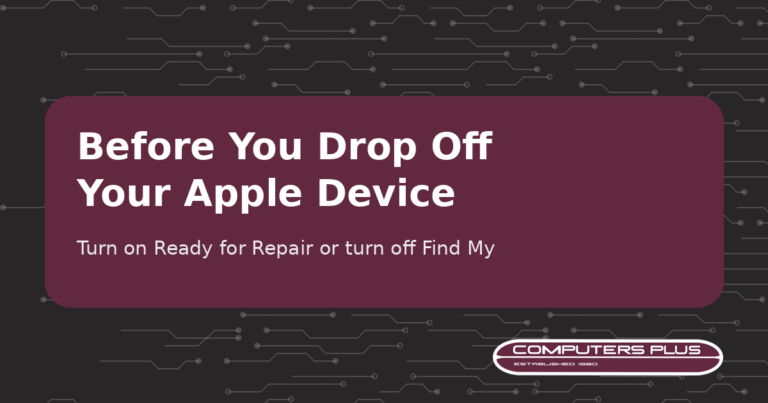
A backup is step one. Step two is turning off Find My or turning on Ready for Repair or Trade In, depending on your macOS version. Our guide to preparing your Apple device for repair walks through it, including what to do if your Mac won’t turn on.
Also know your login password and Apple Account password, but don’t share them. If a technician needs them for software support, you’ll be asked to enter them yourself.
If your Mac won’t start
If your Mac won’t turn on, you may not be able to back it up first. Bring it in anyway and let us know about any files that matter to you. Just know that we can’t guarantee your data will be preserved, and we don’t offer data recovery. Our post on what to try when a MacBook won’t turn on covers a few things to check first.
Bring it in
Once you’re backed up and prepped, bring your Mac to Computers Plus at 301 RHL Boulevard Suite 2, Charleston, WV 25309, Monday through Friday, 9 AM to 5 PM. It’s walk-in drop-off, with no appointment needed. As an Apple Authorized Service Provider, we’ll diagnose your Mac and quote the repair, and no work is done until you approve it.
Learn more about our Mac repair service, or call us with questions at 304.744.1832.
Steps in this post are based on Apple Support documentation as of October 2026. Apple updates its menus over time, so check the linked Apple pages if something looks different on your Mac.