How to Back Up Your Windows PC Before a Repair
If there’s one thing we’d ask every customer to do before dropping off a computer, it’s this: back it up.
Most repairs go exactly as planned. But computers can fail in ways nobody can predict, and some repairs mean replacing or erasing a drive. Data loss can happen during a repair in ways we can’t prevent, so Computers Plus can’t guarantee your files will be preserved. Our data service is device-to-device transfer only. We don’t do data recovery, and we don’t keep copies of your files. That makes your own backup the only sure way to protect your photos, documents and everything else that matters.
The good news: Windows has built-in tools that make backing up fairly painless. Here’s how to use them, based on Microsoft’s own support pages.
Option 1: Windows Backup and OneDrive
Windows 10 and Windows 11 include an app called Windows Backup. According to Microsoft, it can back up your folders, settings and many of your installed apps to your Microsoft account, with your files stored in OneDrive.
What you need: a personal Microsoft account (like an @outlook.com or @live.com address) and enough OneDrive storage. Microsoft says a free Microsoft account comes with 5 GB of OneDrive storage, and more is available to buy. Microsoft also notes that Windows Backup is focused on personal devices, so work or school accounts won’t work.
How to do it (from Microsoft’s instructions):
- Make sure you’re signed in with a Microsoft account. In Settings, go to Accounts > Your info. If you see “Sign in with a Microsoft account instead,” you’re using a local account and will need to switch.
- Select Start, type backup, and open Windows Backup.
- Expand Folders and turn on the folders you want to back up to OneDrive: Desktop, Documents, Pictures, Videos and Music.
- Start the backup, and give it time to finish, especially the first time.
You can check the status later in the Windows Backup app, or in Settings > Accounts > Windows backup.
Good to know: because your folders sync to OneDrive, you can get to them from any computer you sign in to with the same Microsoft account.
Option 2: File History to an external drive
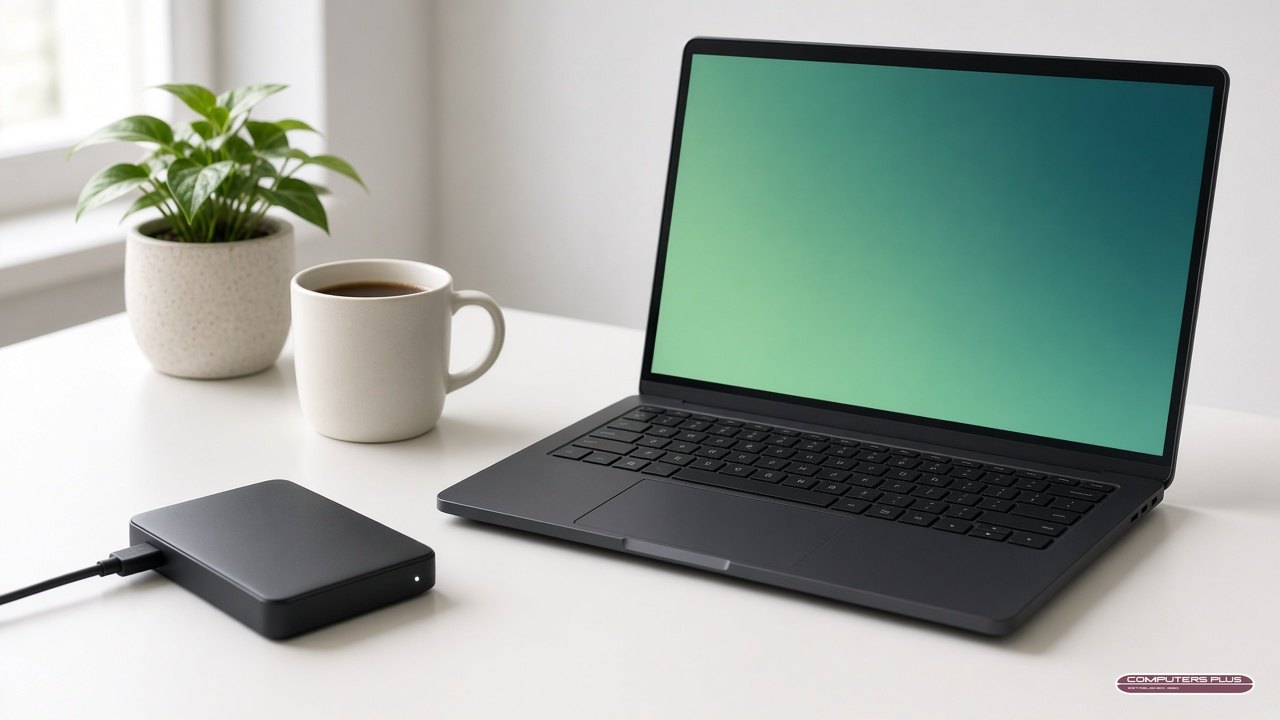
If you’d rather keep a copy on a drive you can hold in your hand, or you have more files than fit in your OneDrive storage, Microsoft suggests an external hard drive. Microsoft’s backup guide says this is a good choice when internet access isn’t available, or when you need to store large files or a large number of files.
Windows’ built-in tool for this is File History. Microsoft says it automatically backs up your libraries, including Documents, Pictures, Videos and Music, plus your Desktop, and keeps previous versions so you can restore an older copy of a file.
How to set it up (from Microsoft’s File History guide):
- Connect an external drive to your PC.
- Open Control Panel, and under System and Security, select Save backup copies of your files with File History.
- If your drive isn’t already selected, choose Select drive, pick your external drive, and select OK.
- Select Turn on.
If you keep important files in a folder that isn’t in one of your libraries, Microsoft explains how to add it: right-click the folder, select Show more options > Include in library.
Option 3: A simple copy to an external drive
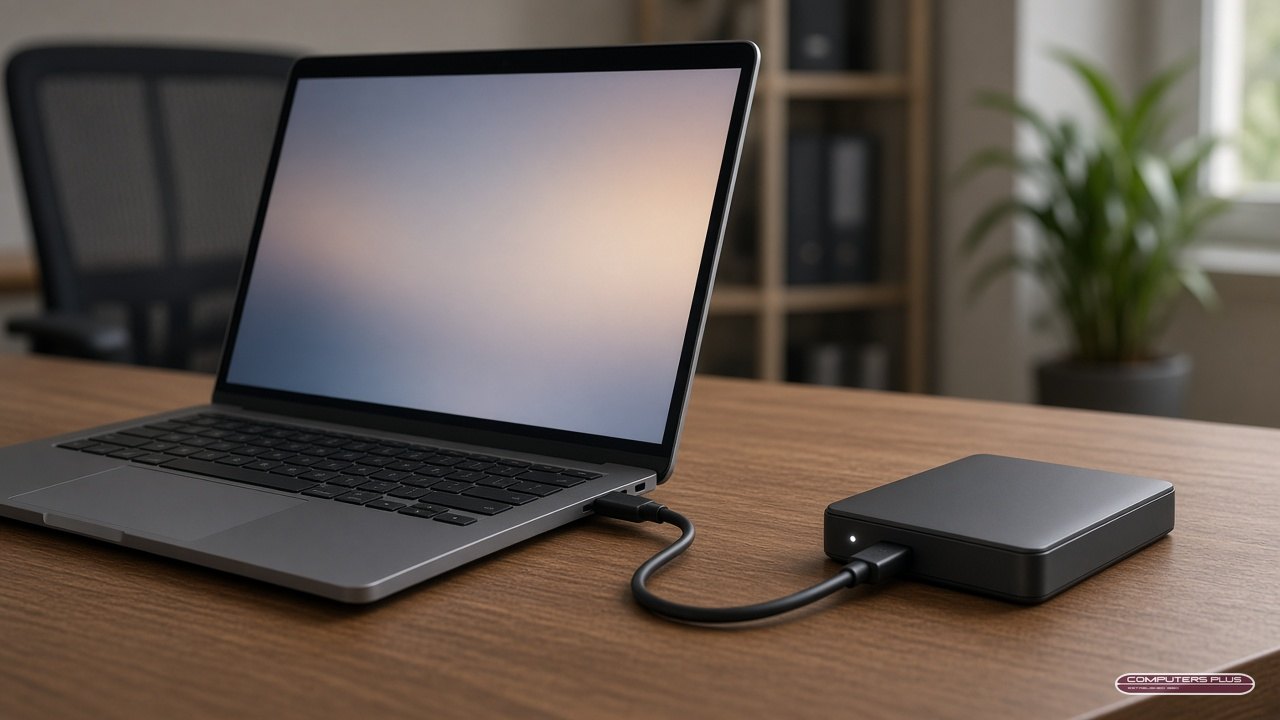
If you just need a quick safety copy before you drop off your computer, you can also plug in an external drive and copy your important folders onto it in File Explorer: Desktop, Documents, Pictures, Downloads and anything else you use. It’s not automatic like File History, but it’s better than no backup at all.
Which option should you use?
Microsoft suggests weighing cloud and external-drive backups side by side. Here’s a simple way to think about it:
- Use Windows Backup and OneDrive if you want your files available anywhere, and you have the OneDrive space.
- Use File History or an external drive if you have a lot of files, a slow connection, or simply want a copy you control.
- Use both if your files are irreplaceable. Two copies in two places is the safest bet.
A few tips before you drop off your PC
- Check that the backup finished. Open a few files from OneDrive or the external drive to make sure they’re really there.
- Don’t forget things outside your user folders. Things like a folder on another drive, or files saved inside a specific program, may need to be copied separately.
- Write down important logins you’ll need afterward, and store them safely. Never give your passwords to anyone.
- Keep the external drive at home. Your backup should stay with you, not with the computer you’re dropping off.
If your PC won’t start
If your computer won’t turn on or won’t boot into Windows, you may not be able to make a backup first. Bring it in anyway, and tell us about any files that matter to you. Just know that we can’t guarantee your data will be preserved during a repair, and we don’t offer data recovery.
Bring it in when you’re ready
Once you’re backed up, bring your computer to Computers Plus at 301 RHL Boulevard Suite 2, Charleston, WV 25309, Monday through Friday, 9 AM to 5 PM. All repairs are walk-in drop-off. There’s nothing to schedule. We’ll diagnose the problem and quote the repair, and no work is done until you approve it.
Learn more about our Windows PC and laptop repair service. Got questions first? Call us at 304.744.1832.
Steps in this post are based on Microsoft Support documentation as of October 2026. Windows menus change over time, so check the linked Microsoft pages if something looks different on your PC.