Before You Drop Off Your Apple Device: Turn On Ready for Repair or Turn Off Find My
Bringing an iPhone, iPad or Mac to Computers Plus for repair? Take a few minutes before you drop it off to set up your device for service. Depending on your software version, that means turning on Apple’s Ready for Repair or Trade In setting (sometimes called “repair state” or “repair mode”) or turning off Find My. Here’s how, using the steps from Apple’s own support pages.
Quick version: Back up your device first. On iOS 27, iPadOS 27 or macOS 27 or later, turn on Ready for Repair or Trade In in the Find My app. On iOS 26, iPadOS 26, macOS 26 or earlier, turn off Find My. Then bring your device to our store at 301 RHL Boulevard Suite 2, Charleston, WV 25309 (Monday–Friday, 9 AM to 5 PM).
Why this matters
Find My includes Activation Lock, which ties your device to your Apple Account so no one else can use it. It’s a great theft deterrent, but it also stops anyone else from servicing the device without your knowledge. Apple notes that on iOS 26 or iPadOS 26 or earlier, Apple might not be able to service your device if Find My isn’t turned off (Apple Support). As an Apple Authorized Service Provider, we follow the same process. If your device isn’t prepared, we may not be able to finish your repair until it is.
Apple’s newer Ready for Repair or Trade In setting (version 27 or later) solves this a different way: it keeps Find My on, so your device stays secure and findable in the Find My app during an eligible repair. When the technician marks the repair complete, the setting turns off automatically (Apple Support).
Step 1: Back up your device
Repairs can sometimes require a device to be erased, so make a fresh backup before you come in. Apple’s guides: How to back up your iPhone, iPad, and iPod touch and Back up your Mac with Time Machine.
Back up before drop-off
We take every reasonable precaution, but we cannot guarantee that data will be preserved during diagnosis or repair; unforeseen issues can result in partial or complete data loss. Please back up your data before drop-off. Customers are responsible for their own backups, and Computers Plus, Inc. is not liable for any loss of data.
Option 1: Turn on Ready for Repair or Trade In (version 27 or later)
This option is available on devices updated to iOS 27, iPadOS 27, macOS 27, watchOS 27 or later. Apple says the service provider will let you know whether your repair is eligible, so if you’re not sure, call us at 304.744.1832 before you come in.
On iPhone or iPad
- Open the Find My app.
- Select the device that needs repair, then tap the More button.
- Under Settings, scroll down to Repair or Trade In. Tap Repair or Trade In.
- Tap Enable.
- To authenticate, enter your Apple Account password.
On a Mac
- Open the Find My app.
- Select the device that needs repair.
- Under Settings, scroll down to Repair or Trade In. Click Repair or Trade In.
- Click Enable.
- To authenticate, enter your Apple Account password.
On the web (iCloud.com)
- Sign in to icloud.com/find.
- Select the device that needs repair.
- Click Repair or Trade In.
- Click Enable.
- To authenticate, enter your Apple Account password.
Changed your mind before drop-off? Tap or click Turn Off next to Repair or Trade In, then Turn Off again to confirm. Source: How to use Ready for Repair or Trade In.
Option 2: Turn off Find My (iOS 26, iPadOS 26, macOS 26 or earlier)
Turning off Find My on your device automatically removes Activation Lock.
On iPhone or iPad
- Go to Settings > [your name] > Find My.
- Tap Find My [device], then turn off Find My [device].
On a Mac
- Choose Apple menu > System Settings, then click your name at the top of the sidebar.
- Click iCloud, then:
macOS 15 or later: Next to Saved to iCloud, click See All, click Find My Mac, then click Turn Off.
macOS 14 or earlier: Click Find My Mac, then click Turn Off next to Find My Mac.
Source: Turn off Find My on your devices and items and Send your Mac to Apple for service.
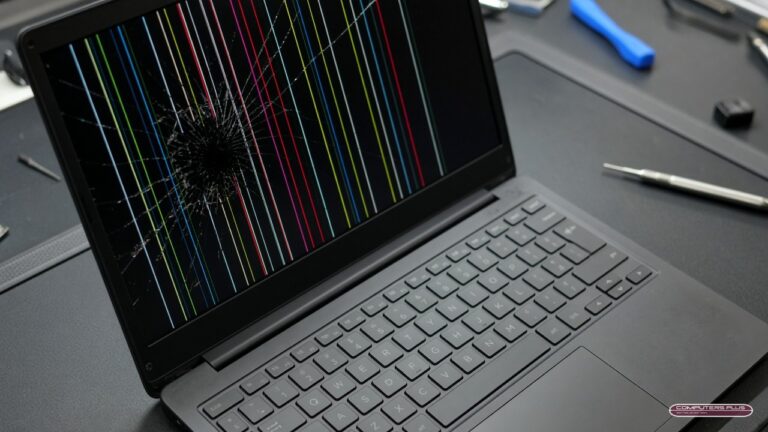
Device won’t turn on, or the screen is broken?
Use the Find My app on another device or go to icloud.com/find. Select your device, then select Repair or Trade In or Remove This Device, and follow the onscreen instructions to prepare it for repair (Apple Support).
According to Apple’s iCloud guide, when you select Remove This Device: if the device is online, it can’t be removed, but if you select Continue it’s marked as Ready for Repair or Trade In for the next 30 days. If the device is offline, Activation Lock is removed immediately and the device is removed from Find My after 30 days (Remove a device from Find Devices on iCloud.com).
Remember: If you turned off Find My for your repair, turn it back on when you get your device back.
Apple Watch
To remove an Apple Watch from Find My, unpair it from your iPhone; Activation Lock is automatically removed (Apple Support). On watchOS 27 or later, you can turn on Ready for Repair or Trade In for an Apple Watch on the web or from another device (Apple Support).
A few more things before you come in
- Know your passcode and Apple Account password. Apple advises never giving your Apple Account password, device passcode or account security details to anyone, and notes that neither Apple nor Apple Authorized Service Providers will ask for them. For some software support you might be asked to enter them yourself, so stay with your device while a technician has access to it.
- iPhone and iPad: Apple also recommends making sure iCloud has finished syncing, turning off Apple Cash, and removing your cards and passes from Apple Wallet.
- Bring: your device and any accessories you need help with, your sales receipt if possible (some repairs might require proof of purchase), and a form of personal ID.
Source: Prepare your iPhone or iPad for a service appointment.
School-owned devices
If your district manages its Apple devices through an MDM (mobile device management) system, you don’t need to follow these steps. Managed devices aren’t Activation Locked the same way personal devices are. See our K-12 Apple Device Repair page.
Ready to drop off your device?
Repairs are handled in store, so just bring your device to 301 RHL Boulevard Suite 2, Charleston, WV 25309, Monday–Friday, 9 AM to 5 PM. Questions first? Call 304.744.1832.
Steps current as of October 2026, based on Apple Support documentation. Apple updates these menus over time, so check the linked Apple pages if what you see on your device looks different.